• Make Over Arena

Selling Things On Facebook - Sell Items On Facebook Group

Selling Things On Facebook – Facebook is fast becoming one of the most powerful online marketing platforms for promoting businesses, cond...

Showing posts with label Post. Show all posts

How to Merge Facebook Accounts

 Access Facebook, Account, Android, App, Download, Facebook Account, Facebook App, Mobile, Post, Profile     No comments   

While Facebook does not allow users to auto-merge all friends, photos, status updates, check-ins or other information, you can manually merge parts of your Facebook accounts. Unfortunately, you won’t be able to migrate or re-create all of your data on Facebook.

How to Bulk Download Facebook DataAs a first step, download your data. This procedure can take a while and the archive will serve as your small backup, should you decide to deactivate or delete your Facebook account. It won’t be of great help in restoring any data, though.

Briefly, go to your General Account Settings and click Download a copy of your Facebook data at the bottom.


This will lead you to a page where you can download your information and get a copy of what you have shared on Facebook.


Now do start your archive on this first page. In addition find where it says You can also download an expanded archive… and click the respective link. This will guide you to the Expanded Archive download page where you will be asked to re-enter your password.


Now here is where you will need patience. Depending on how big your main and your expanded archive are and how many other archives are in the queue, this can take some time. And with that I mean a couple of hours.

Note that you must download both archives, to receive a full backup of your account!

Once your archive is available for download, this is what the page will look like.


Although your own photos are supposed to be included in the archive, you should download your Facebook Photos separately. Not only is this procedure another backup, it is also a lot faster and might provide you with more options.

Restore FriendsAs mentioned above, you won’t be able to restore or migrate all of your data and that includes your friends. You need to manually add friends to your new account. Unfortunately, it is not possible export your Facebook friends to a third party account and then re-import them to a new Facebook account.

However, you can import contacts from third party accounts such as Skype or Gmail. So if you have contact details of most of your friends on accounts outside of Facebook, you can take a small shortcut. Go to your new Facebook account and import contacts from any supported third party account (CSV files are also supported) via the Find Friends page.


While you can export your Facebook contacts to Yahoo! Mail, it is not be possible to re-import them to Facebook. And contacts imported from Facebook will certainly not be included in a Yahoo! CSV file.

Note that only contact information of friends who have agreed to have their email address included in information downloads can be imported into your Yahoo! account.

Restore Account DataHere comes the big letdown. There is no way to upload or otherwise import your archive to restore or transfer data from your old Facebook account to your new one. Whatever you want to restore, you have to do it (semi-)manually or use third party tools. Right now, the archive merely serves as a personal backup, nothing more.
Read More
  • Share This:  
  •  Facebook
  •  Twitter
  •  Google+
  •  Stumble
  •  Digg

Hide & unhide facebook posts

 Access Facebook, Block, Page, Pages, People, Post, Profile     No comments   

Why not just hide and unhide a facebook post: It’s a lot better than deleting and losing all those hard earned likes. It’s the same process as deleting a Facebook post but the difference in this case is that instead of choosing delete, you choose to hide Facebook post.
hide and unhide facebook posts
The difference between hiding and deleting a Facebook post is just on the effects for example,  Hiding a post that you’ve shared from your Page will remove it from your Facebook’s Timeline and not from your Facebook’s activity log. When you delete a Facebook post, you’ll permanently remove it from your FB Page, including your Facebook Page’s activity log.
How To hide or delete a post from your Facebook Page:
  1. Go to the post on your Page’s Timeline
  2. Click  in the top-right corner
  3. Select Hide from Timeline or Delete
hide from timeline

How to Unhide a post you’ve hidden:

  1. Click Settings at the top of your Facebook Page
  2. Click Activity Log in the left column
  3. Click  next to the post you want to unhide and select Allowed on Page

Still having difficulty deleting or hiding your Facebook post on your wall? Please leave us with your comment or check:
Read More
  • Share This:  
  •  Facebook
  •  Twitter
  •  Google+
  •  Stumble
  •  Digg

How to Find Videos On Facebook

 Access Facebook, Account, Facebook Account, Facebook followers, People, Post, Profile     No comments   

Video on Facebook aids you to connect with individuals and also tales you care concerning on a daily basis, whether you're seeing individual minutes from your good friends, discovering the best ways to prepare tasty dishes or maintaining tabs on the most up to date election information.
How To Find Videos On Facebook.

You could already stream Facebook video clips to Apple TV (and other AirPlay-enabled tools) or Chromecast (and also various other Google Cast-- allowed gadgets) from an iphone gadget or your internet internet browser, and also quickly you'll have the ability to cast from Android devices to Chromecast also.

To view a video clip from Facebook on your TELEVISION:
* Locate a video you desire to see on your phone or desktop computer and also press the TV icon in the top right corner.

* Select the tool you desire the video clip to stream to.

* Appreciate the video clip right from your TV.

Whether you're hanging out with pals or just unwinding on the sofa on your own, we wish you appreciate this new way to watch video clips on Facebook.

Read More
  • Share This:  
  •  Facebook
  •  Twitter
  •  Google+
  •  Stumble
  •  Digg

Facebook Sending Friend Requests

 Access Facebook, Account, Download, Facebook, Facebook Account, Facebook followers, Page, People, Post, Settings     No comments   

The Facebook is an excellent platform where you could fulfill all your close friends that are long, away. We could recognize there Condition, there pictures, there where about if they upload on there wall surface or Facebook Profile. We could fulfill everyone and know, yet to understand about them you should be buddy of them. So we will certainly recognize Facebook Sending Friend Requests. To Add Good friend is easy and you have to simply send your pal a demand to add you as a friend.

Facebook Sending Friend RequestsTo send a Friend demand you require to understand him outside Facebook. you could even Include Good friend if you also do not know him outside. Yet make certain not to send out friend request to a lot of of them, this might cause the Block of your Make up couple of days.

* Visit to your Facebook account by going into www.facebook.com or www.fb.com.

* Then Browse for the Person you intend to buddy request on the Search bar of Facebook.

    include good friend on Facebook.

* After you look the Account or Profile you wish to send the Close friend demand you will have the option to ADD FRIEND.

Include friend on Facebook.* Click the ADD Friend and also the Pal Request will be sent to the individual, wait till he accepts your Good friend request.

Include Close Friends on Facebook:The Good friend Demand can be sent to everybody you recognize yet make sure you understand him directly as well as also long times you can not locate ADD BUDDY option on some Accounts, ask the individual to send you the Pal demand if you recognize him personally. If you aren't sure him after that you can not make pal with that individual, yet you will certainly have an option to Comply with the individual where you can get all updates of that individual.

Conclusion:You can send Friend Request, otherwise you could follow and understand their status on your information feed. Make certain to increase your FB close friend checklist in an excellent way. Do not spam on Facebook.

Read More
  • Share This:  
  •  Facebook
  •  Twitter
  •  Google+
  •  Stumble
  •  Digg

How Do You Post A Gif to Facebook

 Access Facebook, Account, Android, App, Download, Facebook, Facebook Account, Facebook followers, People, Post, Profile     No comments   

Just recently, Facebook has begun giving its individuals to utilize computer animated gif pictures under conversation box other than sticker labels. Currently you can use gif photos also to communicate your expressions, your feelings or even to reveal that you are actually laughing aloud instead of just using vernacular lol.

Prior to 2013, it was feasible to post a gif on facebook as well as share gif on Facebook yet quickly Facebook generally stayed clear of making use of GIFs due to its vehicle playing function which inevitably makes the News Feed look really clumsy.

You can not simply post a gif on Facebook merely, as opposed to being computer animated it will end up being a still image after you post a gif on Facebook. You might have seen a great deal of published gifs on Facebook currently days but just how that's occurring if Facebook has no alternative to upload a GIF on Facebook?

How Do You Post A Gif To Facebook.
How Do You Post A Gif to Facebook

1. To Post a GIF to Facebook Profile you have to download and install and also save a GIF picture on your neighborhood computer system which we will later on make use of to publish on your Facebook account.

2. Goto Giphy and create a brand-new account if you are not sign up on it already to post a gif on Facebook. You could login utilizing your Facebook account on Giphy otherwise you do not even have to produce an account on it to post a gif on facebook.

3. There are 2 choices to submit gif on Giphy, either drag and also decline gif images or you can simply get in URLs to publish on Giphy which will let you to publish a gif on Facebook later.

4. Go into URL of the gif as well as paste it in the input box, it will process the web link as well as after that get in tags and also resource link which are optional and click Upload GIFs.

5. Your GIF will be uploaded on Giphy, now click the share switches readily available below the uploaded GIF image, pick Facebook and click on share and also include caption and afterwards upload a gif on Facebook.

How you can Post a GIF on Facebook utilizing Photo Holding Websites.There are a great deal of complimentary picture hosting websites which you could utilize to publish a gif on Facebook. You can not simply post any type of GIFs on Facebook straight but there's always an indirect way to upload a gif on Facebook easily with no problem.

How Do You Post A Gif to Facebook
* Locate any GIF picture as well as replicate the URL of that GIF picture by best clicking it and replicate the photo url, goto any type of complimentary image organizing website as well as upload that GIF using the replicated URL or you can utilize that copied link to simple paste in Facebook condition sharing box and also it will automatically capture the GIF photo as well as you will certainly be able to upload a gif on facebook.

* You could use Tumblr, Giphy, Imgur, Postimage, Tinypic, Photobucket or other free photo organizing websites. Just download and install and conserve GIF photo on your computer system and also then upload GIFs on any of the cost-free photo organizing sites to host you GIFs and message GIFs on Facebook.

* You could develop GIF pictures, produce your own GIF memes and post a gif on Facebook quickly by just publishing it to a totally free photo hosting website.


Quickly, I will share an entire new content of viral GIF images posted on facebook that you can utilize to upload gifs on facebook and share them with your pal circle. Rather than uploading a video on Facebook, you can make use of a great deal of device offered online to transform them into animated gifs and after that submit them to a free photo hosting website like Giphy then message gifs on facebook quickly.

Read More
  • Share This:  
  •  Facebook
  •  Twitter
  •  Google+
  •  Stumble
  •  Digg

Add Youtube Video To Facebook

 Access Facebook, Account, App, Download, Facebook App, Mobile, Post     No comments   

Add Youtube Video To Facebook: This article teaches you ways to publish a video from YouTube to your Facebook Timeline, both on smart phones and on computers.
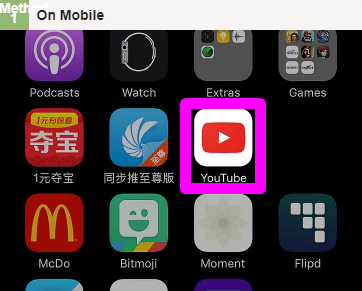
Open up YouTube. This app is red with a white "Play" icon.


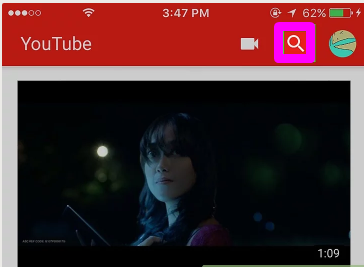
Tap the magnifying glass icon. It's in the upper-right location of the screen.


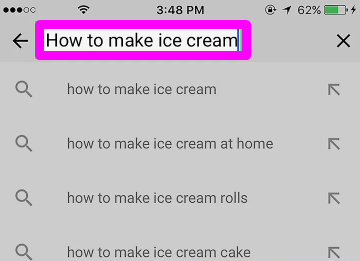
Get in a video title, after that touch Search. This need to be a video which you desire to share to Facebook.


Situate and touch the video clip. Doing so will open it


Touch the "Share" arrowhead (iPhone) or Picture labelled Android7share.png (Android). The "Share" arrowhead appears like a curving, right-facing arrow; you'll discover the share choice on top of the video.


Tap Facebook. It remains in the pop-up window. For this choice to appear, you must have Facebook installed on your mobile device.

You may initially need to touch Extra on iPhone in order to display the Facebook symbol.

If prompted, enable YouTube permission to post to Facebook, after that authorize right into Facebook with your e-mail address (or contact number) and password prior to proceeding.


Get in text for your article if you such as. You'll do so in the "Say something ..." field that shows up at the top of the Facebook message home window.

If you don't get in text below, the default message over the post will certainly be the connect to the video clip.


Tap Article. It remains in the top-right edge of the blog post window. Doing this will certainly post your video clip to Facebook.
Read More
  • Share This:  
  •  Facebook
  •  Twitter
  •  Google+
  •  Stumble
  •  Digg

How To Post Videos To Facebook

 Access Facebook, Account, App, Facebook, Facebook Account, Facebook App, Post, Profile     No comments   

How To Post Videos To Facebook: One of our favorite current YouTube videos asks-- concerning ten thousand times-- "Do you men recognize the best ways to upload video clips to Facebook?"


How To Post Videos To FacebookEnds up we do! Below's how you can publish videos to Facebook.

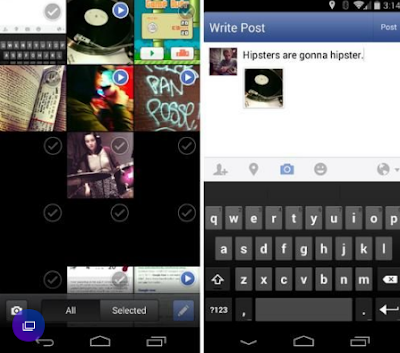
The simplest approach is possibly by means of the mobile application. Both the Android and iOS Facebook apps have options to do this developed into the Write Blog post prompt. Once you have actually shot your video clip, simply touch the gray cam symbol below the message box to see a checklist of your most lately recorded images and also videos outlined in grid design. Select the one you wish to publish, and you'll be taken back to the previous screen to input a message caption, if you so need.

Press Post in the upper-right corner as well as you're done.

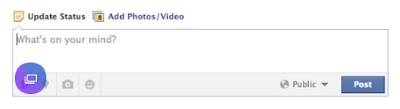
Doing the same from a desktop is equally simple, with the primary difference being that, if you captured the video clip with your smart device, you'll need to email it to yourself or hardwire your phone to your computer system to move it over. Click in the Update Status message box at the top of your News Feed screen; you'll see the same gray electronic camera icon from the smart device app show up. After you click it, you can choose a video from your computer system and also end up the access by clicking Message.

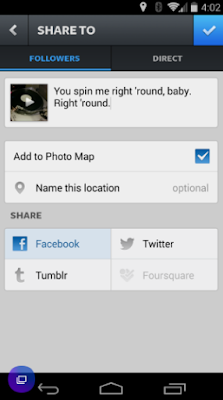
Another simple method to upload video clips to your Timeline is using Instagram (15-second videos just certainly). At the last action before producing an Instagram video with the mobile app (on the Share To screen), all you have to do is highlight the Facebook button. Then, after you click the check mark on the upper-right side, it'll be sent for all your pals to "such as" the hell out of. Keep in mind: The first time you do this, the app could ask to link to your Facebook account, which implies you'll have to sign in with those credentials.

Read More
  • Share This:  
  •  Facebook
  •  Twitter
  •  Google+
  •  Stumble
  •  Digg

How to Copy and Post On Facebook

 Access Facebook, Account, Facebook, Facebook Account, Facebook App, Facebook followers, Page, Pages, People, Post, Profile     No comments   

How To Copy And Post On Facebook: I've seen an increasing number of "copy and also paste" requests on Facebook. They appear to be crowding out the a lot more common requests that a person share or like a post, as well as both show up to misread.

How To Copy And Post On Facebook
Ways to Replicate and Paste Text On Facebook Application?

- Open up Facebook on your phone using chrome or any other browser.
- Currently click the more alternative switch existing in the top right corner.


- Scroll down near the bottom and pick Desktop Site. This will open the site in desktop computer view.


- Pinch bent on zoom and also going towards the blog post which you wish to copy.
- Long tap the status and select the text which you wish to replicate.


- Select copy and also you're done. Now you could paste the message anywhere you want.

Facebook does not punish content that is shared ... they compensate it greatly and also financially in their ad system. Nevertheless, there are some (unverified) reports that just what Facebook punishes it when someone makes a DEMAND that someone take an action. That's just what Facebook has their advertisement system for:.

- If you want individuals to do something about it X.
- Pay us Y for everyone that does.
- And we'll locate Z people who will certainly take that action.

So please, stop requesting that people copy/paste your material. Not just are lots of people not likely to do it, it's likewise counter-productive to any kind of practical outreach objective. Just upload much better, more relocating, powerful, appealing, humorous, heartfelt, or rough content ... Hell, it's why 60% of the net is of fricken pet cat videos. If you have to INFORM people to do something that you think they would not do on their own, you have actually already failed, or you're making believe to be an advertiser without using the advertisement system. That's not going to get very far with the FB algorithms.

Simply publish much better, a lot more relocating, powerful, interesting, amusing, heartfelt, or jarring web content. Hell, the lack of authentic quality is probably why 60% of the web is of fricken cat video clips!
Read More
  • Share This:  
  •  Facebook
  •  Twitter
  •  Google+
  •  Stumble
  •  Digg

Www.facebook.com Desktop

 Access Facebook, Account, Facebook, Facebook Account, Facebook App, Facebook followers, New Facebook, Post, Profile     No comments   

Its interesting to note that making use of mobile phones for accessing web and also social media sites have increased suddenly in last couple of years. This is because of the reason that nowadays firms are thinking of cinema smartphones which are as practical as laptop for accessing various sites too social media sites accounts.

Www.facebook.com Desktop

Today in this highly extremely innovative world, we barely locate people in our circle who do not use mobile phone. These smartphones which made use of to be small screened earlier have currently ended up being bigger in dimension.

The pattern of big screen smart devices was launched by South Oriental maker Samsung and also after analysing demand of big screen phones, the opponents like HTC, Huawai, Lenovo, Xiaomi began to work on cinema mobile phones and today the customers have great deals of options to picked from.

The technology giant Apple Inc had never ever boosted display dimension of iPhone past hassle-free 4.0 inches prior to it surprised entire globe with the launch of two big screen iPhone in 2015 called iPhone 6 and also 6 And also.

The trend which the company began in 2015 is continuing and Apple introduced apple iphone 6S and 6S plus with cinemas once again this year once more.

Facebook On DesktopHow to gain access to Facebook full website on mobile
This is quite easy method and also you would not be needing any type of technical knowledge to follow this technique. All you have to do is to choose you smart device and just do what I've pointed out in step wise tutorial listed below.

Step:1 - Pick your mobile phone as well as open Chrome browser.

Step:2 - Most likely to attend to bar as well as compose www.facebook.com or if you are accessing this blog through mobile, go here.

Step:3 - Though you have actually entered desktop computer version site's address, it will immediately discover your tool and diverts you to mobile friendly website.

The best approach to take a look at whether you are re-directed to mobile pleasant site is to see the LINK in address bar. It will be something like http://m.facebook.com.

The "m" in the beginning suggests you are re-directed to mobile version site. You are currently require to access desktop version using an easy tick that I'm going to inform in following step on your mobile phone.

Step:4 - While you go to http://m.facebook.com, click food selection as well as you will see an option called "Request desktop website" and also a check box versus it. See the below photo


Step:5 - Tick the checkbox and also allow the page obtain refreshed. You are after that be required to desktop computer variation of Facebook.com as well as you can see full internet site on your smart phone. You could notice the LINK has been transformed to desktop version. Checkout below photo!


You may now login to your facebook using username as well as password and also take pleasure in complete internet site on your mobile phone. The example exactly how it will certainly appear like is offered below.


More Tips 

Advantage of accessing Facebook full site on mobile
- You could have full view of the web site
- you could see all the updates clearly
- You could see notifications for the teams you have created on left hand side menu.
- You might access facebook carrier without having to install it.
- You could see the trending topics on the right-hand man side.
- You can easily see that's online who's not from right-hand man side "customers online alert panel"
- You can see live good friends tasks through right hand side alert.

Drawback of using accessing full website on mobile

- Accessing Facebook website on your mobile can be bothersome as you wouldn't be able to utilize the site appropriately due to small fonts
- Accessing full site on the phone will result in mobile coming to be sluggish.
- Considering that the screen is relatively smaller sized, you should zoom every time to upload an upgraded or a comment.

I hope you enjoyed this post. Please take a couple of minutes to share it on your facebook, twitter and also Google plus profiles.
Read More
  • Share This:  
  •  Facebook
  •  Twitter
  •  Google+
  •  Stumble
  •  Digg

HOW TO KNOW IF YOU HAVE BEEN POKED

 Access Facebook, Account, Facebook, Facebook Account, Facebook App, Facebook followers, Messages, Messenger, People, Post     No comments   

Poke symbols are simply small images of a hand with a finger pointing and the name of the person who sent the poke to you. If you have been poked, the image will show up on your home page. Only you can see the poke once you receive it. Depending upon your notification settings, you may also receive a notification informing you of the poke.

HOW TO KNOW IF YOU HAVE BEEN POKED

In addition to the standard poke, Facebook also has a poke app that allows you to send a message, photo or video that only displays for a limited amount of time such as 1, 3, 5 or 10 seconds. The recipient must also have the poke app on their phone, and these pokes cannot be viewed or sent from a desktop.

To poke someone via the poke app:
  • Download the app onto your phone.
  • Log into your Facebook account in the app.
  • Confirm that you want to use the app under that name.
  • Select “Poke a friend with a message, video or chat.”
  • Type in the name of your friend or select a name from your list of contacts.
  • Type in your message, and select a photo or video. If you want to add text to a photo or video, tap the screen and hold, and then type in your message or draw on the photo.
  • Select how long you want the message to display.
  • Hit “Send.”
To view a poke you have received, just tap and hold the message, photo or video until the time runs out. Removing your finger from the screen will cause the message, photo or video to disappear. Once it’s gone, it cannot be viewed.

Keep in mind that while pokes disappear after the time limit, they are still retrievable from Facebook for 90 days. If a friend snaps a screenshot of your poke, Facebook will send you a notification by flashing an icon next to the poke app on your home page to let you know.

Facebook recommends contacting the friend and asking him or her to remove the screenshot directly if you do not wish to have it displayed

Read More
  • Share This:  
  •  Facebook
  •  Twitter
  •  Google+
  •  Stumble
  •  Digg

Restricted Friends On Facebook

 Access Facebook, Account, Block, Facebook, Facebook Account, Facebook App, People, Post, Profile     No comments   

Are you tired of friends that keep you hectic for hours on Facebook chat for reasons much from crucial? You have to publish some photos on your Facebook timeline however do not want a few of your calls to see? I do not see where the problem is.
Facebook offers all the essential devices to talk as well as post freely eliminating more friends petulant or nosy. All you need to do reads these directions on how you can restrict friends on Facebook that I'm about to give you and also place them right into practice. It'll be a totally different songs!

Restricted Friends On Facebook

Let us start this guide on how you can restrict Facebook friends seeing how stem the circulation of petulant friends chatting. Admit it, the number of times you intended to chat with someone on Facebook, but then you quit for not needing to experience the "strikes" of the most petulant friends, those that call you when they see the environment-friendly dot appear beside your name.

Ways to Add a Facebook Good Friend to The "restricted" Checklist
Action 1
  • On your Facebook app, tap on the menu button (☰)
  • Tap on "Account Settings' (for iPhone users tap on "Settings")
  • Tap on "Blocking"
Action 2
  • Tap on the menu button (☰)
  • Tap on "Privacy shortcuts"
  • Scroll down and tap on "How do I stop someone from bothering me?"
  • On the drop down menu, tap on "Blocked users"ON YOUR BROWSER:
  • Click  in the top right of any Facebook page
  • Click "Privacy Shortcuts"
  • Click "How do I stop someone from bothering me?"
  • Click "View All Blocked Users".
Viola!
Read More
  • Share This:  
  •  Facebook
  •  Twitter
  •  Google+
  •  Stumble
  •  Digg

How to See Your Pokes On Facebook

 Access Facebook, Account, Facebook App, Messages, Messenger, Mobile, People, Poke, Post     No comments   

Facebook's "poke" function allowed individuals obtain the focus of others in its own unique means. For lots of us, poking someone on Facebook was considered a form of harmless flirtation, and an expression of interest, just like swiping precisely Tinder-- the person you've Poked will understand you have an interest in some way, however absolutely nothing past that. They could react, they may not. But, no matter, poking was a guaranteed means for a user to let their rate of interest be understood!
See: Who Unfriended Me On Facebook App

How To See Your Pokes On Facebook

Two Ways to Inspect Your Pokes
If you're looking to inspect your Facebook Pokes, the first option is to open the Facebook app, and also go all the way to the bottom of the screen, where you could click the "Even more" button. Then, go to the "Application" switch, as well as click once more. Unless Pokes is among your more frequently utilized applications, this is where it will show up. If you have the tendency to make use of the app regularly, it may appear on the list of alternatives when you originally click "A lot more," perhaps even appearing beside among Facebook's more favored applications now, "On This particular day."

Once discovered, click the Pokes app, and also there you are-- you'll have the ability to see that has Poked you just recently, which you have actually Poked, and also Facebook's suggestions for that you must poke! For example, if you look at a friend's page often, the Poke app will possibly recommend you provide this person a quick "poke.".

The 2nd method to check your Pokes is to merely go to the search bar on top of the Facebook Mobile application, and also key in "Pokes." This should take you to the application itself, which will certainly offer you the same choices as the method explained above.

Don't Poke an Eye Out!

Have you been poking anybody recently? While some customers may discover this Facebook function downright ridiculous, others may still find it adorable, or even flirtatious! Do you wish to learn where you stand in the world of Facebook Pokes? Let us know your thoughts in the remarks listed below, as well as see exactly what various other individuals are thinking!

See: Following Me Facebook Latest Hoax


Read More
  • Share This:  
  •  Facebook
  •  Twitter
  •  Google+
  •  Stumble
  •  Digg

Deleting Photos On Facebook

 Access Facebook, Account, Android, App, Delete, Delete FB, Facebook Account, Facebook Group, People, Photo, Post     No comments   

This guide will walk you through the different ways to Delete Photos From your Facebook timeline. We will describe the best ways to completely remove a picture or album that you have directly published, these pictures will not show up in your timeline or album as well as will no more be related to your account.

How to Delete Photos From Facebook
To erase a photo you have actually personally submitted on Facebook, just navigate to the photo you would like to delete and removal your computer mouse down boundary of the picture. In the menu bar that displays, simply click Alternatives > Remove This Photo:
Deleting Photos On Facebook
After that click on Confirm.

Remove Facebook Account Picture.
You can erase your Facebook profile picture utilizing the above technique. As soon as you are linked to your Facebook account, click on your account picture and also click Options > Delete This Image.

Remove an Image Album on Facebook.
To delete a whole image album on Facebook, most likely to the Photos > Albums and choose the album you wish to remove. Click in the gear icon showed top-right as well as select Remove Cd:

Deleting Photos On Facebook
Click on Confirm.
Read More
  • Share This:  
  •  Facebook
  •  Twitter
  •  Google+
  •  Stumble
  •  Digg

How to Download Videos From Facebook

 Access Facebook, Account, Download, Facebook, Facebook App, Facebook followers, People, Post     No comments   

Facebook does not supply main links to video clips for you to keep. However all you need to do is fool your browser into believing you're surfing Facebook to my computer. Sadly, Facebook does not offer a very easy alternative to download videos from family and friends. Nevertheless, adhering to the steps below permits you to download any kind of uploaded video clip on Facebook with no software.

How To Download A Video From FacebookAction 1: Open your browser.Go to Facebook
Action 2: Pick a video.if you wish to download

Action 3: Right-click on the video and also select Show video URL.

Step 4: Copy the video URL. Continue keyboard Ctr+ C. Video clip URL should be highlighted


Tip 5: in the browser address bar paste the video clip url. Likewise do it push "Ctrl+ v".

Step 6: Modification the "Url" "web" to "m"Example".

Video clip url: https://web.facebook.com/9gag/videos/10155764753716840/.
Modification the video link: https://m.facebook.com/9gag/videos/10155764753716840/.

Action 7: As soon as changed, press Enter to open the mobile version of the web page as well as follow the steps below,.

Tip 8: Click this Play button. Play this video. Right click the video clip Select "Save video as".


Step 9: Open an Appear home windows See. Select an area on your computer where you intend to save the video clip.

Also Do it See the under right corner.Download switch. Click this Download switch. that's it.
Read More
  • Share This:  
  •  Facebook
  •  Twitter
  •  Google+
  •  Stumble
  •  Digg

Live Stream On Facebook

 Access Facebook, Account, Admin Facebook Group, App, Facebook Account, Facebook App, Facebook followers, Mobile, Post, Profile     No comments   

Live-streaming from your personal Facebook page as well as from an organisation page are two different points. This post will check out ways to live-stream on Facebook utilizing both kinds of accounts!
Live Stream On Facebook


Live Stream On Facebook.
Before we delve into the steps first you'll wish to see to it to advertise your live stream far in advance of time. This allows you to construct as sizable a target market as you can! The Facebook Live attribute is only offered on mobile phones at the minute so you will certainly need a cellular phone (iphone, Android, Pixel, etc).

And remember that your livestream will conserve as a video on your timeline when you end it so you don't have to fret concerning what happens to it later on. To read more about livestreaming statistics as well as the benefits of livestreaming for B2B companies click the photo below!

Live Stream On Facebook
Live streaming from an individual Facebook Account:The following directions are rather very easy to comply with. All you require is to have the Facebook app downloaded into your phone.

* Open up the Facebook app on your phone.
Live Stream On Facebook

* Under the blue navigating bar at the very top of the app you will see a "online" alternative on the left hand side. Click this.

* You will be prompted to offer your live-stream a brief summary that will certainly aid audiences understand the topic of your event.


* Along with the summary you will have the choice to select the exposure settings, much like just how you would certainly on various other Facebook posts. You can choose "Public, "Friends", "Only Me", and also a variety of other setups depending on the target market you want for your live-streaming occasion.

* Once you have actually adjusted your settings and also provided a fast description you could touch the "Go Live" switch to begin your live-streaming occasion!


Live-streaming from a Facebook Web page:
When you are very first establishing a livestream for a business or company web page on Facebook there are 2 stages. Both phases could be finished with a mobile phone yet it might be less complicated to complete Stage 1 on a desktop or laptop computer.

Phase 1.
* Utilizing a laptop computer or home computer, log right into the Facebook account belonging to the admin of the business/organization page.
* Once you're logged in planning to the edge of heaven navigating bar at the really top of the page. You will see a dark blue arrowhead directing downwards. Click this.

* Check out the food selection of options and situate "Settings". Click this to go right into your setups.

* When you show up in "Settings" you need to be in the "General Account Settings" tab.


* As an admin you ought to see an option to "Confirm This Page" for the web page you would love to live-stream with.


* Fill in the prompts for a service contact number, country, and language. Later on click "Call me now" to make sure that Facebook can call you with a confirmation code.
* Get in the 4-digit code that Facebook sends to you then click "Continue".

Phase 2.
You will certainly be using your phone exclusively from this factor ahead and also could place your laptop computer or desktop away if you would certainly such as.

* Enter into the application store on the phone that you want to utilize for livestreaming as well as search "Facebook Web page Manager".


* Download this app.
* When the Facebook Page Manager is downloaded and install open it and continue through the tutorial as well as notice prompts.
* Once you permit it to access your Facebook account it ought to currently have your page( s) presented and also prepared to take care of.
* From right here you could go online merely by tapping the "Live" switch situated underneath heaven "Contact" button.


You will certainly be motivated to send a brief summary of your live-streaming occasion and also from there you ready to go!

Read More
  • Share This:  
  •  Facebook
  •  Twitter
  •  Google+
  •  Stumble
  •  Digg
Older Posts Home

Blog Archive

  • ▼  2019 (502)
    • ▼  July (5)
      • ▼  Jul 08 (2)
        • Selling Things On Facebook - Sell Items On Faceboo...
        • Marketplace App For Facebook - How does Facebook ...
      • ►  Jul 07 (2)
      • ►  Jul 06 (1)
    • ►  February (368)
      • ►  Feb 12 (33)
      • ►  Feb 11 (21)
      • ►  Feb 09 (37)
      • ►  Feb 08 (40)
      • ►  Feb 07 (45)
      • ►  Feb 06 (40)
      • ►  Feb 05 (23)
      • ►  Feb 04 (49)
      • ►  Feb 02 (25)
      • ►  Feb 01 (55)
    • ►  January (129)
      • ►  Jan 31 (78)
      • ►  Jan 30 (20)
      • ►  Jan 29 (11)
      • ►  Jan 20 (4)
      • ►  Jan 19 (3)
      • ►  Jan 18 (4)
      • ►  Jan 17 (5)
      • ►  Jan 16 (1)
      • ►  Jan 12 (1)
      • ►  Jan 11 (1)
      • ►  Jan 10 (1)
  • ►  2018 (2464)
    • ►  November (64)
      • ►  Nov 25 (4)
      • ►  Nov 24 (4)
      • ►  Nov 23 (7)
      • ►  Nov 22 (9)
      • ►  Nov 21 (11)
      • ►  Nov 19 (14)
      • ►  Nov 15 (7)
      • ►  Nov 03 (6)
      • ►  Nov 01 (2)
    • ►  October (178)
      • ►  Oct 31 (9)
      • ►  Oct 30 (1)
      • ►  Oct 26 (1)
      • ►  Oct 24 (16)
      • ►  Oct 23 (21)
      • ►  Oct 22 (26)
      • ►  Oct 19 (5)
      • ►  Oct 16 (50)
      • ►  Oct 15 (36)
      • ►  Oct 14 (12)
      • ►  Oct 13 (1)
    • ►  September (770)
      • ►  Sep 27 (58)
      • ►  Sep 26 (50)
      • ►  Sep 25 (70)
      • ►  Sep 24 (70)
      • ►  Sep 20 (50)
      • ►  Sep 19 (79)
      • ►  Sep 18 (50)
      • ►  Sep 17 (43)
      • ►  Sep 14 (81)
      • ►  Sep 13 (39)
      • ►  Sep 12 (101)
      • ►  Sep 11 (69)
      • ►  Sep 10 (9)
      • ►  Sep 09 (1)
    • ►  June (215)
      • ►  Jun 07 (13)
      • ►  Jun 06 (5)
      • ►  Jun 05 (48)
      • ►  Jun 04 (49)
      • ►  Jun 03 (50)
      • ►  Jun 02 (50)
    • ►  May (1205)
      • ►  May 30 (50)
      • ►  May 29 (50)
      • ►  May 28 (43)
      • ►  May 26 (50)
      • ►  May 25 (50)
      • ►  May 24 (50)
      • ►  May 23 (50)
      • ►  May 21 (50)
      • ►  May 20 (100)
      • ►  May 18 (92)
      • ►  May 17 (98)
      • ►  May 16 (93)
      • ►  May 15 (25)
      • ►  May 14 (25)
      • ►  May 13 (90)
      • ►  May 12 (25)
      • ►  May 11 (50)
      • ►  May 09 (25)
      • ►  May 08 (25)
      • ►  May 07 (32)
      • ►  May 06 (21)
      • ►  May 05 (18)
      • ►  May 04 (25)
      • ►  May 03 (18)
      • ►  May 02 (25)
      • ►  May 01 (25)
    • ►  April (26)
      • ►  Apr 12 (25)
      • ►  Apr 10 (1)
    • ►  March (6)
      • ►  Mar 26 (6)

Search

Copyright © Make Over Arena