• Make Over Arena

Selling Things On Facebook - Sell Items On Facebook Group

Selling Things On Facebook – Facebook is fast becoming one of the most powerful online marketing platforms for promoting businesses, cond...

How to disconnect your From Your accounts

 No comments   

WHEN YOU GET a new phone or device, you will normally start off by connecting your old account to it.
Yet old phones may still be connected to your account even if they’re lying around dormant. It’s usually a way for you to transfer files from one phone to another, but if you’re no longer using it, it doesn’t make sense for you to have it saved.
The best thing to do is to do a factory reset on your old phone when you change. But if you don’t, certain platforms allow you to disconnect it remotely.
iOS
Go into Settings > iCloud and tap on your name. Once you’ve signed in, you will see devices as an option. Here you will see all the Apple devices you’ve signed into (if you have more than one activated).
If you want to disconnect a phone from your account, tap on it and tap on remove from account.
remove account iphone
Android
The annoying part is there’s no way to remove accounts remotely – you have to delete all settings from your phone or factory reset in advance – but if you activated Find my Phone on it, you could wipe the data remotely.
While it’s not the same thing, you can remove old phones from your devices list.
Go into your Google Play account and click on settings. You will see a list of all the devices you’ve connected to your account. You can rename them or untick them from your list. If you do that, they won’t appear the next time you try to download an Android app on desktop.
Android phonesSource: Google Play
Windows Phone
By logging into your main account on desktop, go into View account > Devices > View devices.
All Windows devices – both phones and laptops – will be listed here so on the device you want to disconnect, click on remove device and follow the instructions.
Your devices Microsoft
Read More
  • Share This:  
  •  Facebook
  •  Twitter
  •  Google+
  •  Stumble
  •  Digg

How to open fb in desktop view on Android

 No comments   

Facebook doesn't allow us to access their web version on Android Smartphone. It'll automatically redirect you to the mobile version. It's not that Facebook is forcing us to use only device specific version. But to provide you a better experience of Facebook, developers have made it responsive according to the device you're using.
Access Facebook Full Desktop Website
One more reason of why FB doesn't allow it's web version on mobile is that extreme amount of people are not using high-speed Internet connection. So literally you won't be able to operate Facebook desktop version correctly.

But sometimes we might need to take advantage of Facebook' full desktop website on Android. As you can't use all its features on the android version. There are some simple to use methods which will force your browser to open Facebook full site. I have mentioned 3 ways below, although all of them work fine if in any case one of them doesn't work for you then simply go for next one.

1. Using URL

This is one of the simplest method to load Facebook full desktop website on your android phone. We can say that it's an official method from Facebook because the URL which we're going to use is FB's own URL. 
  • Just open your browser and enter this URL  http://www.facebook.com/home.php. Don't forget to add 'www' in front of facebook.
  • It'll open up as a mobile website if you're not logged in, once you've logged into the Facebook, you can see full version of Facebook. 
  • Bookmark the above link to open it in one click or remember to add home.php every time you want to access desktop website.

Read Also: - 
Killer Trick To Invite All Friends To Facebook Page
15+1 Latest Facebook Tips & Tricks

2. Using Browser In Built Function

This feature is available on almost every popular browser. Mobile browsers have a functionality to open desktop view of any website you are surfing. Here I am taking example of Google Chrome android browser.
  • Launch your web browser, you can access it from your Smartphone's home screen.
  • Click the three dots on the top right corner.
  • Now select Request Desktop Site from the menu. (There can be different options for this. Here in Google Chrome it is mentioned as above bold term.
  • Now simply input facebook.com in the address bar and that's it. You're done.

    3. One More Way

    This is another great working method if you're using mobile version and wanna switch to desktop meanwhile.
    • Open your phone web browser. (Here I am taking example of Google Chrome)
    • Open http://m.facebook.com, wait till it loads.
    • Now click on the menu from the top right corner.
    • Scroll to the end of the menu and there you can see an option Desktop Site, simply click on it and that't it.
    Note: - It is always advised to rotate your screen while accessing desktop website on your mobile. Landscape mode will give a better view of text and image of the website. To use landscape mode simply select rotate screen notification bar. 

    So readers this was all about how to load facebook desktop version on your android mobile. Hope one of the method would work for you. If you're facing any inconvenience or having any doubt or query then feel free to leave a comment below in the comment section.
    Read More
    • Share This:  
    •  Facebook
    •  Twitter
    •  Google+
    •  Stumble
    •  Digg

    How to change facebook photo

     No comments   


    Facebook: How to Change Profile Picture

    Facebook: How to Change Profile Picture

    Is your Facebook profile picture getting a little old and stale? Change it up a bit with these steps.

    From a Desktop Browser

    1. Login to Facebook.
    2. Select “Photos” in the “Explore” section on the left pane.
    3. Navigate to and select the photo you wish to use for your profile.
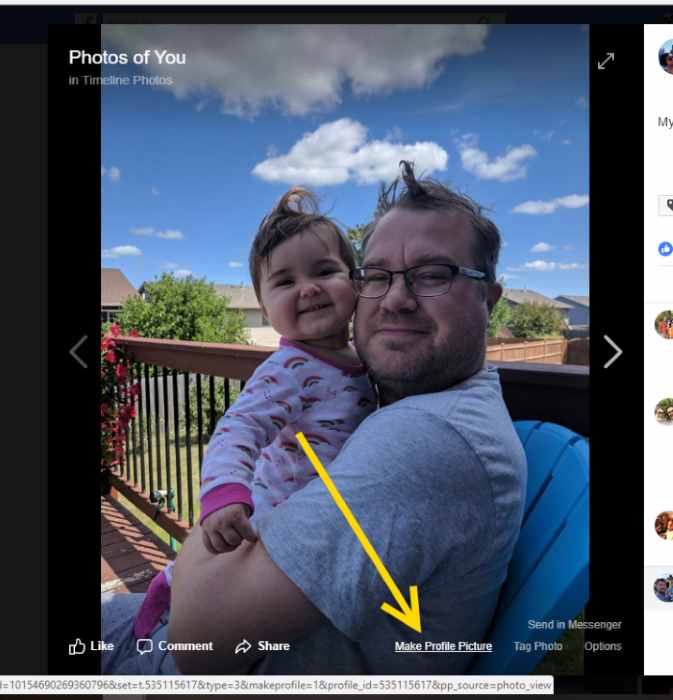
    4. Select “Options” at the bottom of the screen, then choose “Make Profile Picture“.

    5. Crop the photo to your liking. Select “Save“, and the photo is set as your profile pic.

    From a Mobile Browser

    1. Login to the Facebook mobile site.
    2. Tap the “Menu” Menu Button button in the upper-right corner of the screen.
    3. Select “Photos“. (You may have to select “See more” first.)
    4. Select the photo you wish to set as your profile picture.
    5. Select the “Make Profile Picture” link, then select “Confirm“.

     From the iPhone & iPad App

    1. Open the Facebook app.
    2. Select yourself at the top of the screen to access your profile page.
    3. Select the “Edit” option in your existing profile photo.

    From the Android App

    1. Open the Facebook app.
    2. Tap the icon that looks like a person.
    3. Select the “Edit” option in your existing profile photo.
    4. Choose “Select Profile Picture“.
    5. Navigate to and select the photo you wish to use for your profile.
    Read More
    • Share This:  
    •  Facebook
    •  Twitter
    •  Google+
    •  Stumble
    •  Digg

    How to see my sent friend requests on facebook

     No comments   

    Torture yourself by discovering who hasn’t accepted your Facebook friend request on the world’s biggest social network.
    Facebook is a great way of keeping in touch with friends; you can share photos, chat, and keep up to date with each other’s lives – if the person you want to be friends with you, that is.
    The reality is, not everyone wants to be your Facebook friend. Everyone uses Facebook differently, some accept friend requests from everyone, others want to keep work and home life separate, while some people just ignore requests altogether.
    [Read more: How to stop videos playing automatically in Facebook]
    You might not know, but you can quickly find out exactly who you have a sent a Facebook friend request to and see any pending requests that the recipient hasn’t responded to.

    How to check sent Facebook friend requests

    1: Open Facebook on a computer and click the ‘Friend requests’ icon on the top right menu bar.
    Screenshot, who has been ignoring your Facebook friend requests
    2: A drop-down box appears - click ‘View all’ at the bottom.
    Check outgoing Facebook friend requests screenshot 2
    3: Look for and click ‘View Sent Requests’.
    Facebook screenshot 'View Sent Requests'
    4: You’ll see any outgoing friend requests that haven’t been accepted. If you don’t have any, it will say ‘No Sent Friend Requests’.
    Screenshot Facebook showing no outgoing Friend requests
    5: Cancel outgoing request by hovering over ‘Friend Request Sent’ and clicking ‘Cancel Request’.

    Read More
    • Share This:  
    •  Facebook
    •  Twitter
    •  Google+
    •  Stumble
    •  Digg

    How to set Location settings iphone 6s

     No comments   

    Some apps might not work unless you turn on Location Services.1 The first time an app needs to access your Location Services information, you'll get a notification asking for permission. Choose one of these options:
    • Tap Allow to let the app use Location Services information as needed. 
    • Tap Don't Allow to prevent access.2
    iOS devices might use Wi-Fi and Bluetooth to determine your location. GPS and cellular location are available on iPhone and iPad (Wi-Fi + Cellular) models.
         

    How to turn Location Services on or off for specific apps

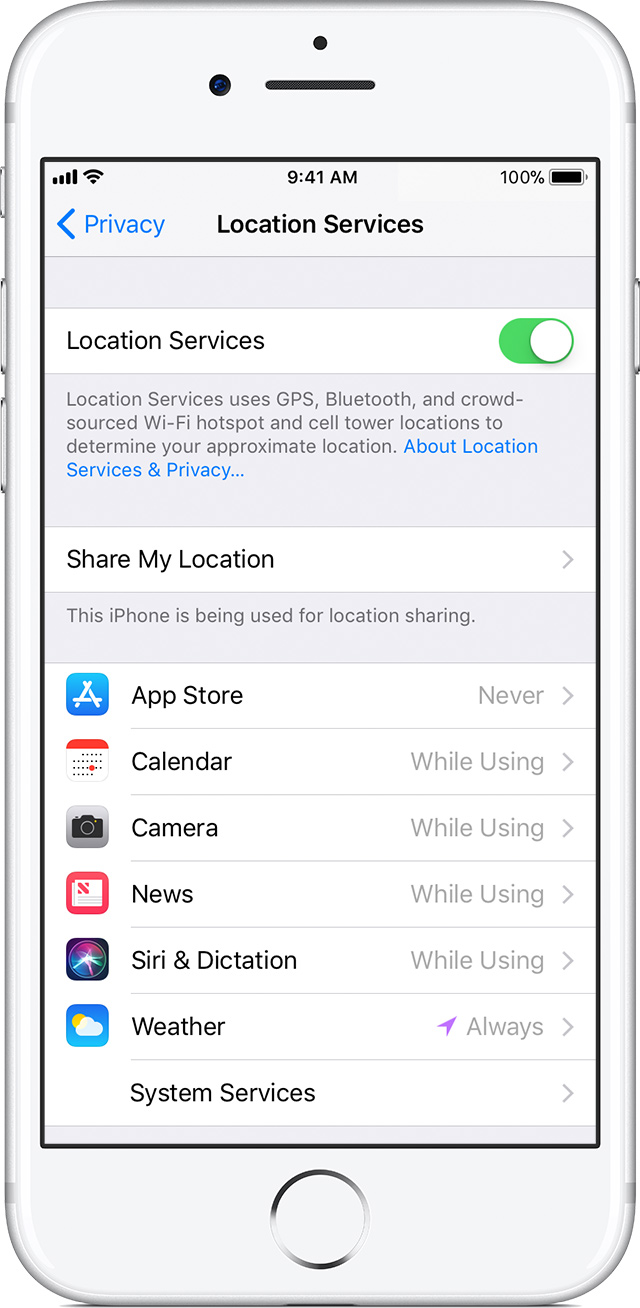
    1. Go to Settings > Privacy > Location Services.
    2. Make sure that Location Services is on.
    3. Scroll down to find the app.
    4. Tap the app and select an option:
      • Never: Prevents access to Location Services information.
      • While Using the App: Allows access to Location Services only when the app or one of its features is visible on screen. If an app is set to While Using the App, you might see your status bar turn blue with a message that an app is actively using your location.
      • Always: Allows access to your location even when the app is in the background.
    From here, apps should provide an explanation of how the app will use your location information. Some apps might offer only two options. Learn more about privacy and Location Services.
    1. Location Services uses GPS and Bluetooth (where they're available), along with crowd-sourced Wi-Fi hotspots and cellular towers to determine the approximate location of your device.
    2. Apps won't use your location until they ask for your permission and you allow permission.
    Read More
    • Share This:  
    •  Facebook
    •  Twitter
    •  Google+
    •  Stumble
    •  Digg

    Google company size

     No comments   

    Google was founded by Larry Page and Sergey Brin while they were students at Stanford University. The company was officially launched in September 1998 in a friend’s garage. In one of the most anticipated Initial Public Offerings (IPO) Google raised $1.67 billion in August of 2004. Today, Google has over 12,000 employees in offices throughout the world.
    Google search page in the internet
    Google’s mission statement and corporate culture reflect a philosophy that you can “make money without doing evil” and that “work should be challenging and the challenge should be fun.” These beliefs dominate life at Google. The official mission statement of the company is to “organize the world’s information and make it universally accessible and useful.”
    In 2006, Google was selected by MBA students as the ideal place to work. In 2007 and 2008 Fortune Magazine named Google the Number 1 employer in their annual 100 Best Companies to Work For.

    Google Company Culture

    Google is a high-energy, fast-paced work environment. While the dress code might be “casual” the company attracts and retains some of the brightest minds in the technology industry. There is a work hard, play hard atmosphere. The Google Mountain View, CA headquarters (aka “the Googleplex”) is a campus-like environment. There are workout facilities, a café, well-stocked snack rooms, and a dorm like environment. View the Google Office Descriptions for more details.
    In my opinion, one of the coolest programs at Google is the 20% time program. All Engineers at Google are encouraged to spend 20% of their work time on projects that interest them. Not only does this keep Engineers happy and challenged, but its also good business: some estimates put half of all new product launches can be directly attributed to projects that came from the 20% time program.

    Jobs at Google

    In the United States, Google has offices in several states, including California, Illinois, Massachusetts, Arizona, Michigan, New York, Texas, North Carolina, Oklahoma, South Carolina, Pennsylvania, Oregon, Washington (Seattle) and Washington, DC. They currently have hundreds of openings in Engineering, IT, Operations and Support functions. Some of the current openings at Google:
    • Current job postings in Engineering include openings for Software Engineers with extensive experience in C++ programming and in Java programming. There are also a lot of openings for Testing Engineers and a few for Web Designers.
    • The current postings for Operations and IT include openings you would find in many Information Technology departments, including System Administrators and Help Desk Technicians. There were dozens of openings in their Data Center as of this writing.
    • Google actively recruits college graduates, with a special website section specifically for students. Google offers both internship and full-time employment opportunities on their student recruitment pages.
    • Google also has offices internationally. While much of the information presented here refers to Google’s US offices, they currently have hundreds of Google Openings Worldwide in areas such as Asia-Pacific, Europe, the Middle East, Africa, and the Americas. I counted openings in 57 worldwide locations, not including those in the United States.

    Google Compensation and Benefits

    Most workers at Google have base salaries that are on the lower end of normal for the markets they operate in. The base salaries are supplemented by stock options, challenging work and extensive benefits. In addition to the normal health and welfare benefits that most larger companies offer, Google provides its employees with the following cutting-edge benefits:
    • Healthcare for you and your family, plus on-site physician and dental care at our headquarters in Mountain View, California and our engineering center in Seattle, Washington​
    • Vacation days and holidays, and flexible work hours
    • Maternity and parental leave, plus new moms and dads can expense up to $500 for take-out meals during the first four weeks that they are home with their new baby
    • Adoption assistance
    • Google Child Care Center, just five minutes from Google headquarters in Mountain View
    • Backup child care helps California parents when their regularly scheduled child care falls through
    • Free shuttle service to several San Francisco, East Bay, and South Bay locations
    • Fuel Efficiency Vehicle Incentive Program
    • Employee discounts
    • Onsite dry cleaning, plus a coin-free laundry room in the Mountain View office

    More Google Information

    • The Official Google Blog is a look at life inside Google, written by staff members from different departments in various Google locations around the world.
    • Google has a philanthropic organization now, as seen at Google.org aimed at finding solutions to some of the global problems facing the world today. Google.org has a grant dissemination program that provides free advertising to select charities.
    From the Google website, the top 10 reasons to work at Google:
    1. Lend a helping hand. With millions of visitors every month, Google has become an essential part of everyday life—like a good friend—connecting people with the information they need to live great lives.
    2. Life is beautiful. Being a part of something that matters and working on products in which you can believe is remarkably fulfilling.
    3. Appreciation is the best motivation, so we've created a fun and inspiring workspace you'll be glad to be a part of, including on-site doctor and dentist; massage and yoga; professional development opportunities; on-site day care; shoreline running trails; and plenty of snacks to get you through the day.
    1. Work and play are not mutually exclusive. It is possible to code and pass the puck at the same time.
    2. We love our employees, and we want them to know it. Google offers a variety of benefits, including a choice of medical programs, company-matched 401(k), stock options, maternity and paternity leave, and much more.
    3. Innovation is our bloodline. Even the best technology can be improved. We see endless opportunity to create even more relevant, more useful, and faster products for our users. Google is the technology leader in organizing the world’s information.
    1. Good company everywhere you look. Googlers range from former neurosurgeons, CEOs, and U.S. puzzle champions to alligator wrestlers and former-Marines. No matter what their backgrounds Googlers make for interesting cube mates.
    2. Uniting the world, one user at a time. People in every country and every language use our products. As such we think, act, and work globally—just our little contribution to making the world a better place.
    3. Boldly go where no one has gone before. There are hundreds of challenges yet to solve. Your creative ideas matter here and are worth exploring. You'll have the opportunity to develop innovative new products that millions of people will find useful.

    1. There is such a thing as a free lunch after all. In fact, we have them every day: healthy, yummy, and made with love.
    Read More
    • Share This:  
    •  Facebook
    •  Twitter
    •  Google+
    •  Stumble
    •  Digg

    Facebook wants my phone number

     No comments   

    Facebook has become the most popular social network in the history of known universe for a pretty simple reason: It appeals to our egos.

    Our egos love to be connected, recognized and comforted. But those needs are generally tiny compared to our desire to be flattered. And one way Facebook continually flatters us is by asking for our phone number — continually. Like all the time.
    But like any stranger seeking your digits, the site may have ulterior motives.
    Ask Facebook, “Why am I being asked to add my phone number to my account?” and its help page will tell you this:
    Adding your phone number to your account will help keep your account secure, make it easier for you to connect with friends and family on Facebook and make it easier to regain access to your account if you have trouble logging in.
    That’s true. But are there other reason that it might want this piece of information — reasons that appeal directly to Facebook’s bottom line? Almost certainly. In fact, the business case for getting your phone number may be so strong that it’s likely at least part of the reason for the change in terms and conditions for WhatsApp, which is owned by the technology giant.
    So what does Facebook get when it gets your phone number?
    Potentially lots and lots of information about you — possibly even your favorite breakfast cereal.
    Watch our chief research office Mikko Hypponen break down what the data scientists that help social networks sell ads learn about you from your number.

    Even if you don’t mind being marketed at with ruthless efficiency, there may be other ways Facebook could use your number that you might want to consider.
    You might have heard about the therapist who began seeing her patients pop in Facebook’s “People You May Know” module.
    How did this happen?
    Fusion‘s Kashmir Hill suggests that “an algorithm analyzing this network of phone contacts might reasonably assume all these people are connected.”
    And in this case the therapist didn’t even remember giving her number to the site, but she had. If you’re logged in, you can check if Facebook has your number here.
    This still could be some value to you in handing over your number. Two-factor authentication is generally a smart strategy for any account you want to protect — and you need to offer your smartphone number to access the SMS messages you’ll need to use.
    But remember: If you make your number available on Facebook, people can find you by searching it.
    So if you do use Facebook’s two-factor authentication, you should consider hiding your phone number for anyone but yourself.
    To do this, go to your profile page, click “About” under your cover image and then in the left column click on “Contact and Basic Info”. Next to your mobile number, click “Edit” and select “Only Me”.
    This will make sure strangers won’t find your number through your profile or vice versa. But it won’t stop Facebook from knowing what your favorite breakfast cereal is.
    Read More
    • Share This:  
    •  Facebook
    •  Twitter
    •  Google+
    •  Stumble
    •  Digg
    Newer Posts Older Posts Home

    Blog Archive

    • ▼  2019 (502)
      • ▼  July (5)
        • ▼  Jul 08 (2)
          • Selling Things On Facebook - Sell Items On Faceboo...
          • Marketplace App For Facebook - How does Facebook ...
        • ►  Jul 07 (2)
        • ►  Jul 06 (1)
      • ►  February (368)
        • ►  Feb 12 (33)
        • ►  Feb 11 (21)
        • ►  Feb 09 (37)
        • ►  Feb 08 (40)
        • ►  Feb 07 (45)
        • ►  Feb 06 (40)
        • ►  Feb 05 (23)
        • ►  Feb 04 (49)
        • ►  Feb 02 (25)
        • ►  Feb 01 (55)
      • ►  January (129)
        • ►  Jan 31 (78)
        • ►  Jan 30 (20)
        • ►  Jan 29 (11)
        • ►  Jan 20 (4)
        • ►  Jan 19 (3)
        • ►  Jan 18 (4)
        • ►  Jan 17 (5)
        • ►  Jan 16 (1)
        • ►  Jan 12 (1)
        • ►  Jan 11 (1)
        • ►  Jan 10 (1)
    • ►  2018 (2464)
      • ►  November (64)
        • ►  Nov 25 (4)
        • ►  Nov 24 (4)
        • ►  Nov 23 (7)
        • ►  Nov 22 (9)
        • ►  Nov 21 (11)
        • ►  Nov 19 (14)
        • ►  Nov 15 (7)
        • ►  Nov 03 (6)
        • ►  Nov 01 (2)
      • ►  October (178)
        • ►  Oct 31 (9)
        • ►  Oct 30 (1)
        • ►  Oct 26 (1)
        • ►  Oct 24 (16)
        • ►  Oct 23 (21)
        • ►  Oct 22 (26)
        • ►  Oct 19 (5)
        • ►  Oct 16 (50)
        • ►  Oct 15 (36)
        • ►  Oct 14 (12)
        • ►  Oct 13 (1)
      • ►  September (770)
        • ►  Sep 27 (58)
        • ►  Sep 26 (50)
        • ►  Sep 25 (70)
        • ►  Sep 24 (70)
        • ►  Sep 20 (50)
        • ►  Sep 19 (79)
        • ►  Sep 18 (50)
        • ►  Sep 17 (43)
        • ►  Sep 14 (81)
        • ►  Sep 13 (39)
        • ►  Sep 12 (101)
        • ►  Sep 11 (69)
        • ►  Sep 10 (9)
        • ►  Sep 09 (1)
      • ►  June (215)
        • ►  Jun 07 (13)
        • ►  Jun 06 (5)
        • ►  Jun 05 (48)
        • ►  Jun 04 (49)
        • ►  Jun 03 (50)
        • ►  Jun 02 (50)
      • ►  May (1205)
        • ►  May 30 (50)
        • ►  May 29 (50)
        • ►  May 28 (43)
        • ►  May 26 (50)
        • ►  May 25 (50)
        • ►  May 24 (50)
        • ►  May 23 (50)
        • ►  May 21 (50)
        • ►  May 20 (100)
        • ►  May 18 (92)
        • ►  May 17 (98)
        • ►  May 16 (93)
        • ►  May 15 (25)
        • ►  May 14 (25)
        • ►  May 13 (90)
        • ►  May 12 (25)
        • ►  May 11 (50)
        • ►  May 09 (25)
        • ►  May 08 (25)
        • ►  May 07 (32)
        • ►  May 06 (21)
        • ►  May 05 (18)
        • ►  May 04 (25)
        • ►  May 03 (18)
        • ►  May 02 (25)
        • ►  May 01 (25)
      • ►  April (26)
        • ►  Apr 12 (25)
        • ►  Apr 10 (1)
      • ►  March (6)
        • ►  Mar 26 (6)

    Search

    Copyright © Make Over Arena